Family sync
With family sync, several family members edit selected children on their own devices. It covers their profiles, events, daily logs and supported media, including nickname recordings. On the server, each account can belong to one family.
Setting up a family
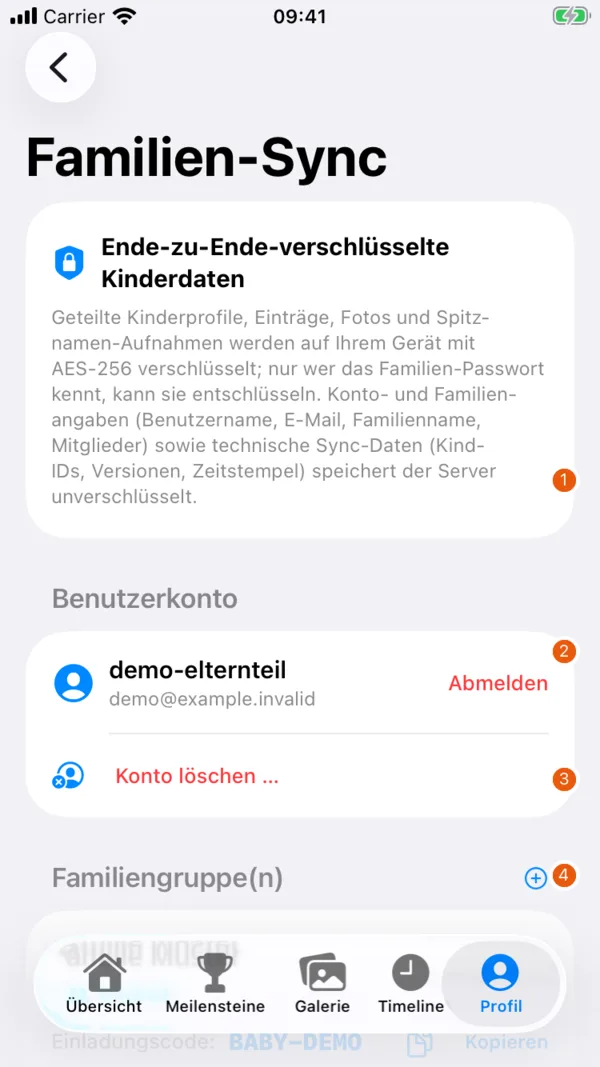
| No. | Element | Function |
|---|---|---|
| 1 | Encryption notice | Explains which data is encrypted and which metadata the server sees. |
| 2 | User account | Shows the signed-in account and offers "Abmelden" (Sign out). |
| 3 | "Konto löschen" (Delete account) | Opens the explanation and confirmation for deleting the account. |
| 4 | Family group | Opens the family options. The capture uses only a fictional account and a demo invitation code. |
- Open "Profil › Familie & Cloud-Synchronisation › Familien-Synchronisation (E2EE)" (Profile › Family & cloud sync › Family sync).
- Create a user account or sign in.
- Choose "Neue Familie erstellen" (Create new family). Enter a family name and a strong family password. Keep it in a safe place.
- Under "Kinder mit Familie teilen & hochladen" (Share & upload children with family), switch on the children you want to share. Wait until the upload has finished without errors.
- Other members sign in with their own account and choose "Bestehender Familie beitreten" (Join existing family). They need the invitation code and the same family password.
Share the password and invitation code only with the intended members. The operator cannot recover or reset a forgotten family password. Update all family devices so that they support the same data formats.
Encryption and passwords
The account password is used to sign in. The separate family password encrypts the shared children's data on the device. The server receives the encrypted child bundles. User name, e-mail address, family name, membership and technical sync metadata are not part of this encryption. Local files and exports are not encrypted this way.
The stored family password can be shown in the family view. The owner of the family can change it with "Familien-Passwort ändern …" (Change family password). The other members then enter the new password under "Familien-Passwort eingeben …" (Enter family password). This entry only changes the password used on that device.
If a child bundle cannot be decrypted, the app reports an error and does not overwrite that bundle. Check the family password first. Do not delete local data to fix such an error.
Changes and connection problems
Changes to shared children start a sync automatically. Changes made offline stay pending and are retried when the connection is back. Opening the app also fetches the family's changes. "Alle Familien synchronisieren" (Sync all families) starts a manual sync.
Simultaneous changes are merged per entry. When the same entry was edited on several devices, the most recent change wins. This is no edit history and no replacement for an independent backup. Check important entries after conflicting changes.
If an error occurs, check the connection and the error message. The "Cloud-Server" button opens the connection diagnostics, which show the connection status and local data sizes, among other things.
Access and sharing
"Neuen Einladungscode erstellen" (Create new invitation code) makes the previous invitation code invalid. Existing members stay in the family. A single member cannot be removed in the app. A new password cannot take back copies that were already downloaded either.
Switching off sharing for a child or choosing "Abmelden" (Sign out) does not delete its copy on the server. Before removing data, read Backup and deletion.